How to Turn App Screenshots into Polished Device Mockups Online (2026 Guide)

If you build apps, websites or SaaS dashboards, you have probably been here: the feature is finally shipped, you need a visual for a launch post, a landing page or a pitch deck, and all you have is a flat screenshot. Pasting it in as-is looks unfinished, and waiting on a designer to drop it into a device frame can take days. Over the past few weeks I have been using MockShot, a browser-based mockup editor, to solve exactly this problem. Here is what I learned, how the workflow goes, and a few things worth knowing before you start.
What Is MockShot?
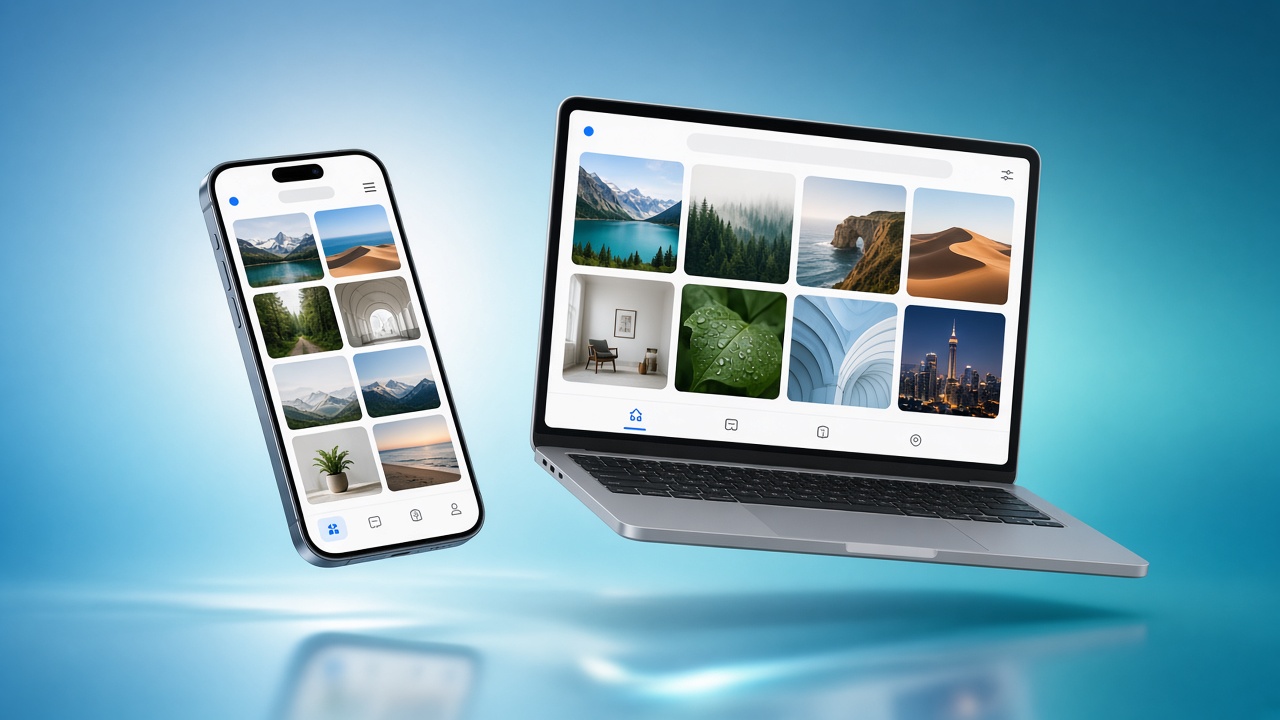
MockShot is a device mockup and screenshot generator that runs in your browser. According to the official site, it is built for app makers, designers and small product teams. The idea is simple: start with a real screenshot, place it inside a device frame, and build a composition around the one feature you want to explain.
What I like about this framing is that it keeps the focus where it belongs. The frame gives the image context, but the screenshot still does the explaining. A fancy device on a busy background will not save an unclear interface, so the tool nudges you toward clean, readable visuals rather than decoration for its own sake.
When you are done, you can export your mockup as PNG, JPG, WebP or SVG, and you can add backgrounds and text along the way.
Step-by-Step: From Screenshot to Finished Mockup
The official site describes a practical four-step workflow, and after trying it on a few projects, I think it is a good habit to follow every time.
Step 1: Prepare One Clear Screen
Capture the interface at a useful resolution. Before you do anything else, remove private names, email addresses and account details. MockShot accepts PNG, JPG and WebP imports up to 20 MB each.
One lesson I had to learn the hard way: a larger export cannot recover text that was already blurry in the source image. If your screenshot is soft, fix the capture first rather than hoping the export will sharpen it.
Step 2: Choose a Frame and Fit the Image
Open the Studio, pick a device and click its screen to import your screenshot. You then choose how the image fits the display:
- Cover fills the display and may crop the edges.
- Contain shows the complete source image.
- Stretch changes the proportions to fit.
Adjust the crop position before adding any effects. If you want a second device in the same scene, use Add; to swap the currently selected frame for a different one, use Replace.
Step 3: Build a Composition with Breathing Room
Set the canvas dimensions for wherever the image is going, then position the device. A quiet background and one short headline that explains the benefit usually work far better than a crowded layout.
The Layers panel lets you select, reorder, hide or remove individual objects. A device screenshot and a separate logo image are different layers, so you can edit each one independently without breaking the rest of the composition.
Step 4: Check the Actual Exported Result
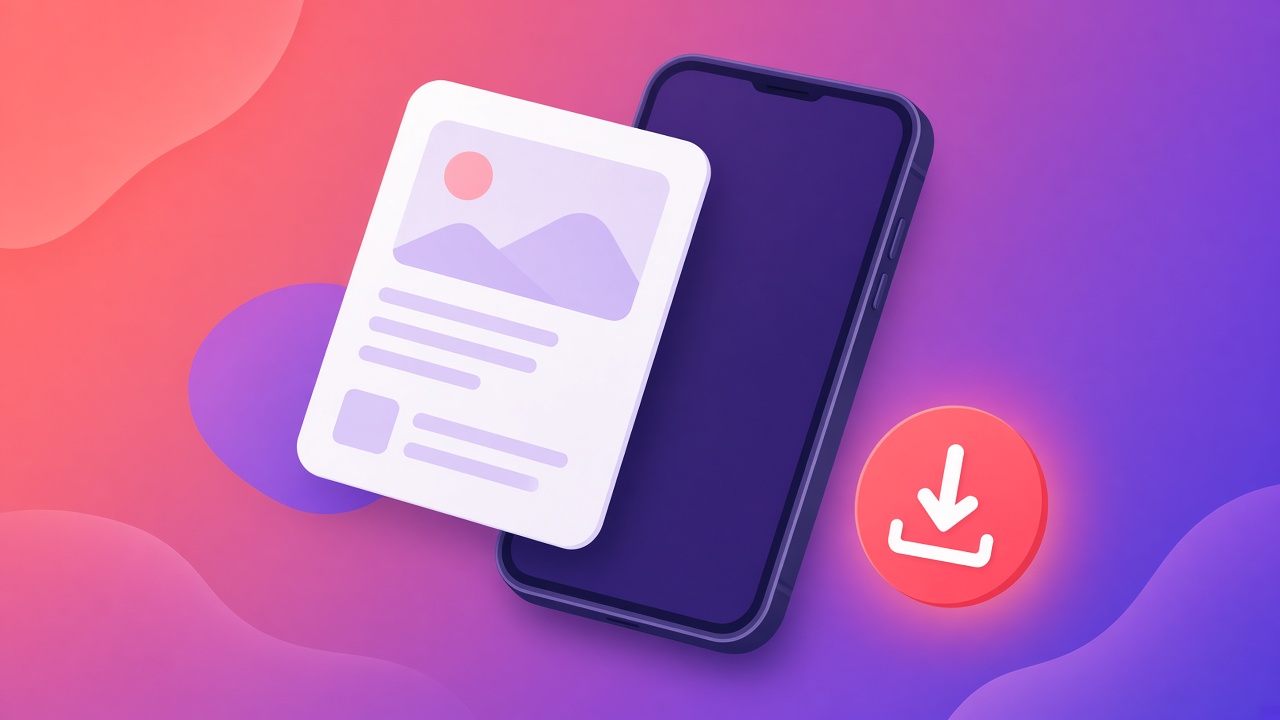
This step is easy to skip, and it is the one that saves you from embarrassing mistakes. Preview zoom changes your workspace view, not the output resolution. So export the file, open the download, and inspect small labels and cropped edges at real size.
A few format notes from the official guidance:
- Export PNG for sharp interface graphics or when you need transparency.
- JPG flattens transparent areas onto white.
- The SVG download embeds a rendered image rather than editable vector objects, so do not expect to tweak individual shapes in a vector editor.
Pick the Right Device for the Story
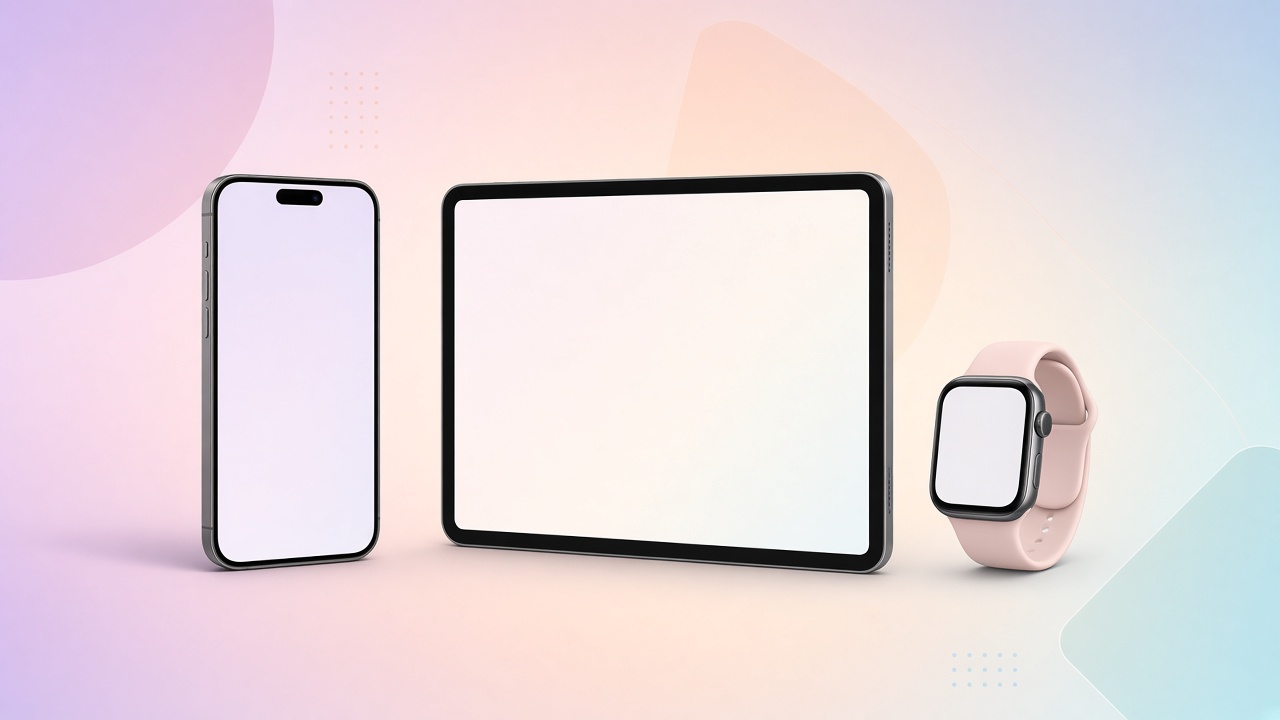
MockShot covers a wide range of device categories: phones, tablets, laptops, desktops, displays, watches and smart home devices. Choosing the right one is less about looks and more about what you are trying to show:
- A phone works well for a focused mobile action.
- A laptop suits a web workflow.
- A larger display is a natural fit for a dashboard.
One Feature, Three Destinations
The site gives an example I found genuinely useful. Imagine a task-management app. Start with a screenshot that shows a completed task rather than an empty account, because an empty state rarely sells anything. Then:
- For a social post, build a square image with a readable phone and one benefit-led headline.
- For a presentation, switch to a wider canvas and leave room beside the device for a short explanation.
- For a product page, export with a transparent background so the mockup can sit inside your existing layout.
Review each version separately. Changing only the canvas ratio can cut off a headline or shrink the interface so much that nobody can read it.
2D vs. 3D, Plus Rotation Videos
The rule of thumb is straightforward: choose 2D when a stable, readable screenshot matters most, and choose 3D when a change of angle actually helps demonstrate the product.
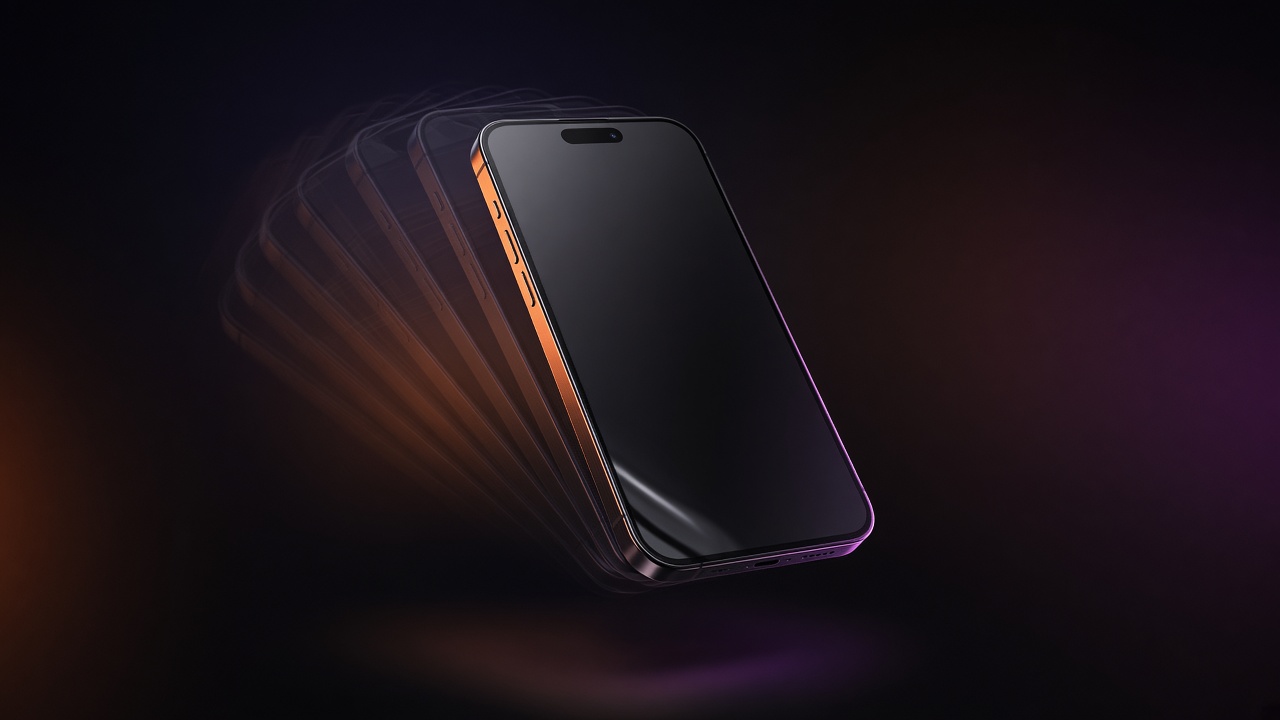
MockShot also includes motion templates that use your current device and screenshot. You can edit the start and end poses, position and scale, and set a duration anywhere from 3 to 20 seconds. A six-second rotation is suggested as a useful starting point, not a requirement.
Previewing the animation is free. Downloading a video requires Pro or Lifetime access and a browser that supports recording. You can compare the available plans on the official pricing page.
Privacy: What Stays on Your Device
This was one of the reasons I felt comfortable using MockShot with work-in-progress screens. According to the official site, local editor imports and rendering happen in your browser. Choosing a screenshot is not the same as uploading a file to account storage or a shared library.
There is a trade-off to keep in mind, though: a local draft lets you resume work in the same browser, but it is not a cloud backup. Keep your own source files somewhere safe. Accounts, billing and contact messages are handled separately, as described in the site’s privacy and cookie policies.
Who Is MockShot For?
- Indie developers preparing store screenshots. The site has a guide on planning images for the App Store and Google Play, with a reminder to check each store’s upload rules.
- Product managers and marketers who need launch visuals and social graphics quickly.
- Designers who want fast presentation images without opening a heavy design suite.
- Small teams and founders building landing pages and pitch decks.
A Few Things to Keep in Mind
- Device frames are illustrative presentation assets, not engineering-accurate models of physical products.
- Device names, logos and trademarks belong to their respective owners, and their appearance does not imply affiliation or endorsement. Check the rights for your intended use.
- Only publish assets you have permission to use, and consider using consistent synthetic data in demo screenshots.
Final Thoughts
If you regularly need to turn app or website screenshots into clean product visuals, MockShot is worth a try. It runs in the browser, covers many device types, exports to the common image formats, and even handles simple 3D rotation videos. My advice: grab one good screenshot, follow the four steps above, and judge the exported file at full size. That will tell you quickly whether it fits your workflow.
This post contains promotional links. Features and pricing are subject to the official website.
